
The fastest way to save voicemails permanently is to export them as standalone audio files you own. On most iPhones, that takes under a minute: open the Phone app, tap Voicemail, select the message, hit Share, and choose Save to Files. The file lands on your device as a .m4a you control. From there, follow the 3-2-1 archival rule (three copies, two storage types, one offsite) so no single failure wipes the recording. If you want to go further and organize saved audio with transcripts and family access, Senarra imports voicemail files directly.
Quick steps that work on most iPhones and many Android phones:
- Open your Phone app and go to the Voicemail tab.
- Tap the message you want to keep.
- Tap the Share icon (box with an arrow) and choose Save to Files, AirDrop, or email.
- Move the saved file to at least one cloud location (iCloud Drive, Google Drive, or Dropbox).
- Rename the file with the speaker's name and date so you can find it years from now.
Before you move on, confirm:
- You have the file on your phone AND in cloud storage.
- You can play it back on a second device.
- You've converted to .mp3 if long-term compatibility matters to you.
Key Takeaways
Exporting voicemails as standalone audio files you own is the only reliable way to preserve them permanently — carrier mailboxes are temporary storage, not archives.
| Point | Details |
|---|---|
| Export creates real ownership | Use Share → Save to Files on iPhone (.m4a) or your carrier app on Android to get a file you control. |
| Carriers delete on a schedule | Retention windows can be as short as 14 days — export before that window closes. |
| 3-2-1 rule protects the file | Keep three copies across two storage types, with one copy offsite (cloud counts). |
| Name files with context | Include speaker, date, and a short note in the filename so the recording stays meaningful years later. |
| Senarra organizes the archive | Import saved voicemail files into Senarra for transcription, speaker tagging, and secure family sharing. |
How to save voicemails on iPhone (every path that works)
iPhone's visual voicemail makes export straightforward when the Share button appears. Here are the exact steps:
- Open the Phone app and tap the Voicemail tab at the bottom right.
- Tap the voicemail message you want to export (not the play button — tap the message row itself).
- Tap the Share icon (the box-with-arrow icon).
- Choose your destination: Save to Files, AirDrop, Mail, Voice Memos, or Notes.
- If you chose Save to Files, pick a folder (iCloud Drive works well) and tap Save.
- Rename the file immediately: use a format like
Mom_2024-12-25_Christmas.m4a.
The exported file is an .m4a audio file. Every modern device plays .m4a natively, so you don't need to convert it right away. If you plan to share it with someone on an older system or burn it to a CD, convert it to .mp3 using a local desktop tool like VLC or Audacity rather than an online converter.
Saving multiple voicemails: iPhone doesn't offer a true batch-export button. You'll repeat the Share steps for each message. Work through them in one sitting so you don't lose track of which ones you've saved.
Troubleshooting:
- No Share button visible: This usually means your carrier uses standard dial-in voicemail instead of visual voicemail. You'll need to record the playback manually (covered in the Android/fallback section below).
- Message disappeared: Check the Deleted Messages folder at the bottom of your Voicemail tab. According to Apple Support, deleted voicemails sometimes remain there until the carrier purges them.
- Visual Voicemail vs. carrier voicemail: Visual voicemail shows messages as a list with individual playback. Standard carrier voicemail requires you to dial in and listen sequentially, with no export option built in.
Pro Tip: AirDrop to a nearby Mac is the fastest single-step backup. Share the voicemail, select your Mac from the AirDrop list, and the .m4a drops straight into your Downloads folder — no cables, no cloud login required.
How to save voicemails on Android (carrier apps, Google Voice, and fallbacks)
Android is more fragmented than iOS, so the path depends on your phone brand and carrier. The good news: most Android phones and carrier visual voicemail apps include a Share, Export, or Archive option somewhere in the message menu.
Where to look first:
Open your Phone app and navigate to the Voicemail tab. Tap and hold a message, or tap the three-dot menu next to it. Look for Save, Export, Share, or Archive. If your carrier provides a dedicated visual voicemail app (common with AT&T, Verizon, and T-Mobile), open that app instead and check its message-level menu for the same options.

Google Voice users have a cleaner path: log into voice.google.com on a desktop browser, open the voicemail, and click the three-dot menu to download the audio file directly as an .mp3.
When no export option exists, use these fallbacks:
- Place your phone on speaker and record the playback on a second device (another phone, a tablet, or a laptop with a microphone).
- Connect a USB audio interface to your computer and play the voicemail through it while recording in Audacity. This gives better audio quality than a room recording.
- Use a computer recording app (QuickTime on Mac, Voice Recorder on Windows) with the phone held near the microphone in a quiet room.
File format notes: Android exports vary. Some carrier apps produce .amr files, others export .m4a or .mp3. All three are valid audio files. AMR is a compressed telephony format that plays in VLC but may not open in every media player. Convert AMR to .mp3 locally if you want reliable long-term playback.
Carrier warning: Some carrier apps label the action "Archive" but actually move the message to a server folder that still gets purged on the carrier's schedule. Move the file off the carrier's system immediately after export.
Pro Tip: On Samsung phones running One UI, long-pressing a voicemail in the Phone app often reveals a Share option that doesn't appear when you tap normally. Try both gestures before assuming export isn't available.
How to back up exported voicemails for long-term preservation
Exporting the file is step one. Keeping it safe for years requires a deliberate backup plan. The 3-2-1 rule is the standard: three copies of the file, stored on two different types of media, with one copy held offsite.
A simple 3-2-1 checklist for voicemail files:
- Copy 1: iCloud Drive or Google Drive (cloud, offsite by default).
- Copy 2: Your computer's local hard drive or an external SSD.
- Copy 3: A USB thumb drive stored somewhere other than your home (a family member's house, a safe deposit box).
Storage options at a glance:
| Storage type | Pros | Cons |
|---|---|---|
| iCloud Drive | Syncs automatically with iPhone | Requires paid plan above 5 GB |
| Google Drive | 15 GB free, cross-platform | Tied to Google account access |
| Dropbox | Easy sharing with family | Limited free tier |
| Local hard drive | Fast, no subscription | Lost if device fails or is stolen |
| USB thumb drive | Portable, inexpensive | Easy to misplace; no auto-sync |

Naming and metadata: Generic filenames like Voicemail 001.m4a become impossible to identify a year later. Name every file with the speaker, date, and a short context note: Dad_2023-06-15_birthday-message.m4a. Add a plain-text README file in the same folder with a sentence or two of context: who left the message, why it matters, and any related memories.
Conversion: If you need .mp3 for compatibility (older car stereos, CD burning, sharing with relatives on Windows), convert locally. VLC Media Player converts .m4a and .amr to .mp3 for free without uploading anything. Avoid free online converters for private or emotional recordings — many upload your audio to third-party servers.
Pro Tip: Enable end-to-end encryption on your cloud folder if the voicemail contains sensitive personal information. iCloud Advanced Data Protection and Proton Drive both offer this without requiring technical setup.
Alternatives and troubleshooting when export doesn't work
Sometimes the standard export path isn't available. These alternatives cover the most common gaps, along with fixes for the problems people run into most often.
Alternative capture methods:
- Voicemail-to-email forwarding: Some carriers and VoIP providers (Google Voice, Ooma, RingCentral) automatically email voicemails as audio attachments. Check your account settings and enable this before you need it.
- Google Voice export: If the voicemail lives in Google Voice, download it directly from the web interface as an .mp3. This is the cleanest Android-adjacent option.
- Record on a second device: Play the voicemail on speaker and record on a nearby phone or laptop. Quality is lower but the content is preserved.
- Third-party backup apps: Several apps claim to export voicemails in bulk. Vet them carefully: check the privacy policy, confirm they don't upload audio to their servers, and read recent reviews before granting microphone or phone access.
Troubleshooting checklist:
- Share button missing on iPhone: Your carrier likely uses dial-in voicemail. Switch to visual voicemail in Settings → Phone → Change Voicemail Password (this prompts setup), or call your carrier to enable it.
- Message not in Voicemail tab: Check the Deleted Messages folder at the bottom of the Voicemail screen. Apple's documentation confirms messages sometimes persist there after deletion.
- Carrier won't help recover a deleted message: Carriers auto-delete voicemails on schedules as short as 14 days. Once purged from the server, recovery is rarely possible. Act before that window closes.
- Switching carriers or closing an account: Export every message before the number transfers or the account closes. Carrier mailboxes are tied to the account, not the phone.
Pro Tip: If you're about to port your number to a new carrier, export voicemails the night before. The mailbox on the old carrier typically becomes inaccessible within hours of the port completing.
Preflight checklist before switching phones, carriers, or deleting voicemails
Run through this list before any action that could cut off access to your mailbox.
- Export every message you want to keep as an audio file using the Share method or a fallback recording.
- Save two copies — one to cloud storage, one to your computer or an external drive.
- Email a copy to yourself or a family member as a secondary backup with no extra steps required to retrieve it.
- Confirm playback on a different device before assuming the file is good. A corrupted export sounds like silence.
- Rename files with the speaker's name, date, and brief context.
- Check Deleted Messages one last time for anything you may have dismissed by accident.
- Move all files off the phone before the SIM swap, factory reset, or account closure.
One rule that covers every scenario: never close a phone account or transfer a number until you've confirmed the exported files play correctly on a device other than the one you're giving up.
Which capture method fits your situation?
The right approach depends on what you're trying to do. Here's how to match method to need, along with a note on when format and transcription matter.
Scenario-by-scenario guidance:
- Fast single keepsake (iPhone): Use Share → Save to Files. Done in 30 seconds. AirDrop to a Mac if you want a computer copy immediately.
- Multiple messages at once: Check your carrier's visual voicemail app for a bulk export or Archive All option. Google Voice users can download individual messages from the web interface; batch export options exist in some Google Voice setups and are worth checking before doing them one at a time.
- Older phones or landline voicemail: Analog capture is the only option. Play on speaker in a quiet room and record on a digital recorder or laptop. For the best quality, use a USB audio interface and record in Audacity, then normalize levels before saving.
- Legal or official use: Preserve the original file without any editing. Note the date, time, and caller ID in a separate document. For chain-of-custody purposes, consult an attorney before converting or editing the file in any way.
Format guidance: Keep the original .m4a or .amr for your archive copy. Convert a separate copy to .mp3 for sharing, since .mp3 plays on virtually every device without a codec question. When the voicemail carries emotional weight, add a short transcript as a text file in the same folder — it makes the memory searchable and accessible even if the audio file format becomes obsolete decades from now.
Senarra is purpose-built for exactly this next step: import your exported voicemail files, add transcripts and speaker tags, and share the organized archive with family members. It's the difference between a folder of audio files and a family voice archive that's actually navigable. For families preserving multiple messages from a loved one, that organization layer matters more than most people expect until they're searching through 40 unnamed .m4a files at 2 AM.
Why this kind of preservation deserves more care than people give it
Most people treat voicemail export as a technical chore. It's not. A voicemail is one of the few recordings that captures someone's voice in an unscripted, unperformed moment — the way they actually sounded when they were just talking to you.
The export-and-backup approach described here isn't overcautious. Carriers delete messages on schedules most people never read, and the "saved" flag inside a carrier app offers no real protection against that. The 3-2-1 rule exists because any single storage point can fail. Following it for a voicemail takes ten minutes and costs nothing.
What I'd add beyond the technical steps: treat the naming and context note as seriously as the backup itself. A file named Dad_2022-11-24_Thanksgiving.m4a with a two-sentence README will still be meaningful to your children. A file named Voicemail 003.m4a probably won't be. The emotional case for preserving audio memories is straightforward — voice carries personality in a way that photos and text simply don't. Getting the file out of the carrier's system is the urgent part. Organizing it well is what makes it last.
Senarra turns saved voicemail files into a lasting family archive
Once you've exported your voicemail files, the harder problem is keeping them organized, searchable, and accessible to the people who matter. Senarra solves that directly: import your .m4a or .mp3 files, and Senarra transcribes them, tags speakers, and stores everything in a secure archive your family can access by app or phone.
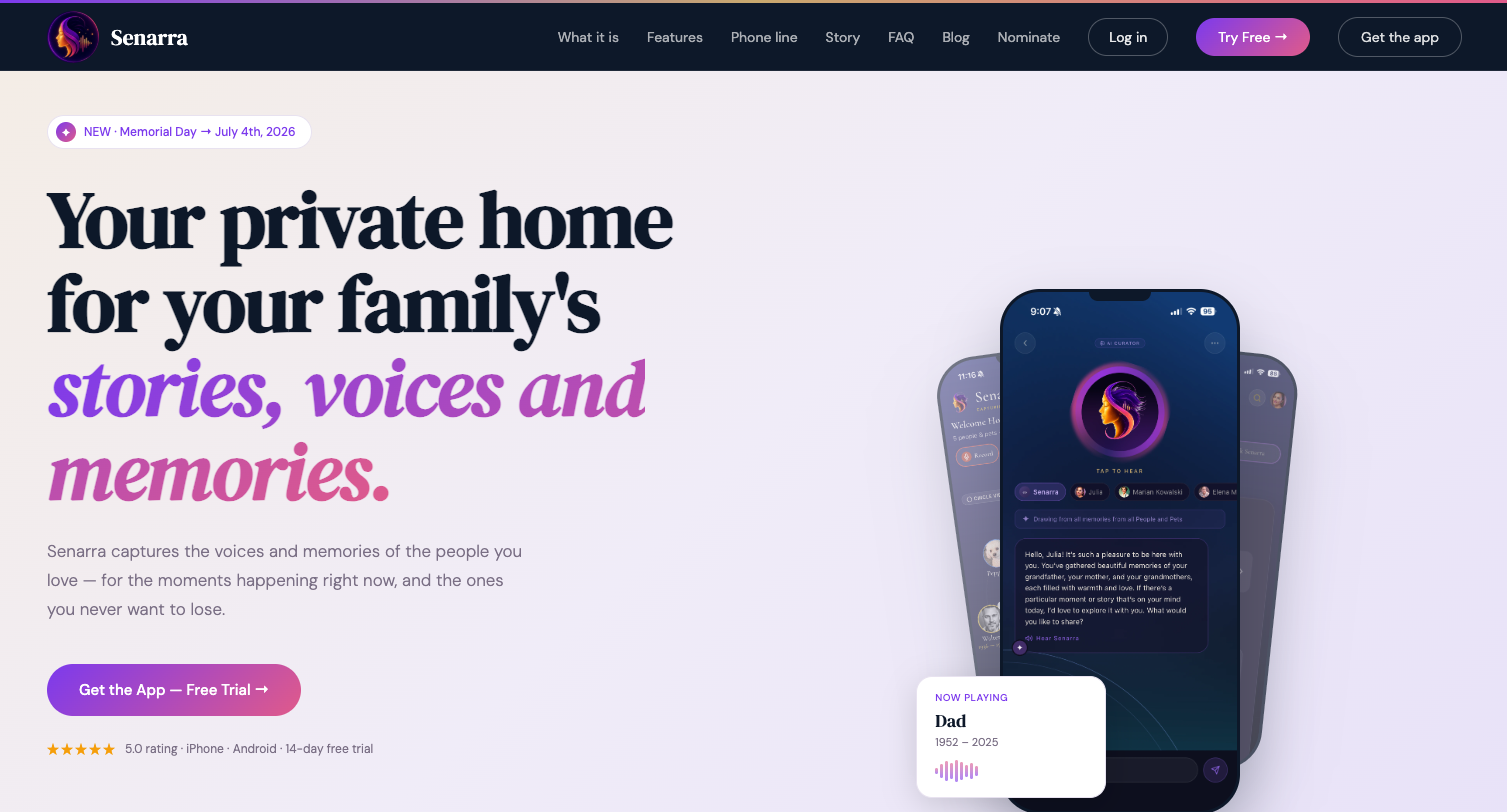
Where a folder of audio files requires someone to know what they're looking for, Senarra's archive is searchable by name, date, and context. Family members can listen, add notes, and contribute their own memories alongside the saved recordings. Voice cloning means a loved one's voice can answer questions drawn from real recorded moments, not a script. The free 14-day trial gives you enough time to import your existing voicemail files and see whether the organized archive format works for your family. Start at Senarra and bring your saved recordings with you.
Sources
These sources back the steps and recommendations throughout this article and are worth bookmarking for platform-specific troubleshooting:
- How to save your voicemails on your iPhone — How-To Geek
- Your treasured voicemails are in danger of deletion. How to save them — AARP
- Your carrier deletes voicemails automatically. Save the ones that matter tonight. — Komando
- Check voicemail on iPhone - Apple Support
- How to permanently save voicemails in iOS and Android — TechRepublic
- How to save those important voicemails on your smartphone forever — USA TODAY / Komando